Common setup
An auto clicker that waits for an image.
Most auto clickers click on a timer. That is enough when the screen never changes, and useless the moment it does: the button is not there yet, the cooldown is still running, the icon has not come back. What you want instead is "click when that is on screen".
Polter Click does that by looking at the screen. You give it a cutout of the thing to look for, it watches for that cutout, and the click happens when it appears. Here is the whole setup.
Five steps
-
Take a screenshot with the icon on it
The screenshot hotkey is
F12until you change it, under Settings → General. It captures without leaving the program you are in, and keeps the last five. An image file you already have works too. -
Make an object out of it
Objects → Object → New for one the whole library can use, or the Private tab in the node's own picker for one that belongs to a single macro and is cleaned up with it. Name it and choose the screenshot.
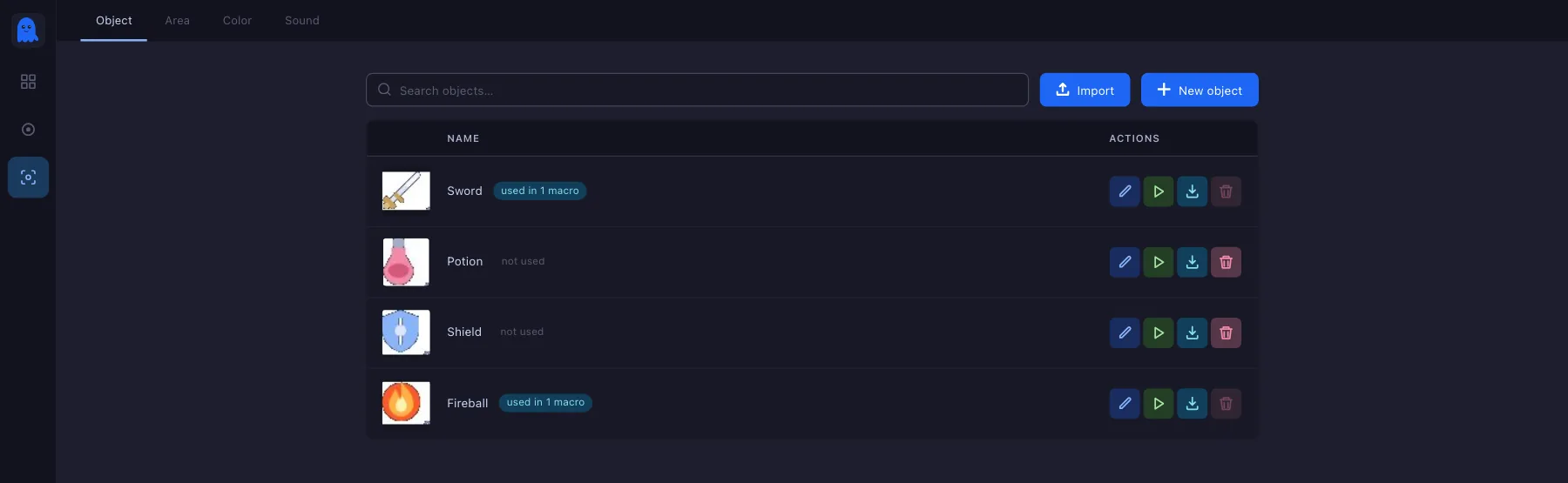
The library. A row that is in use cannot be deleted. -
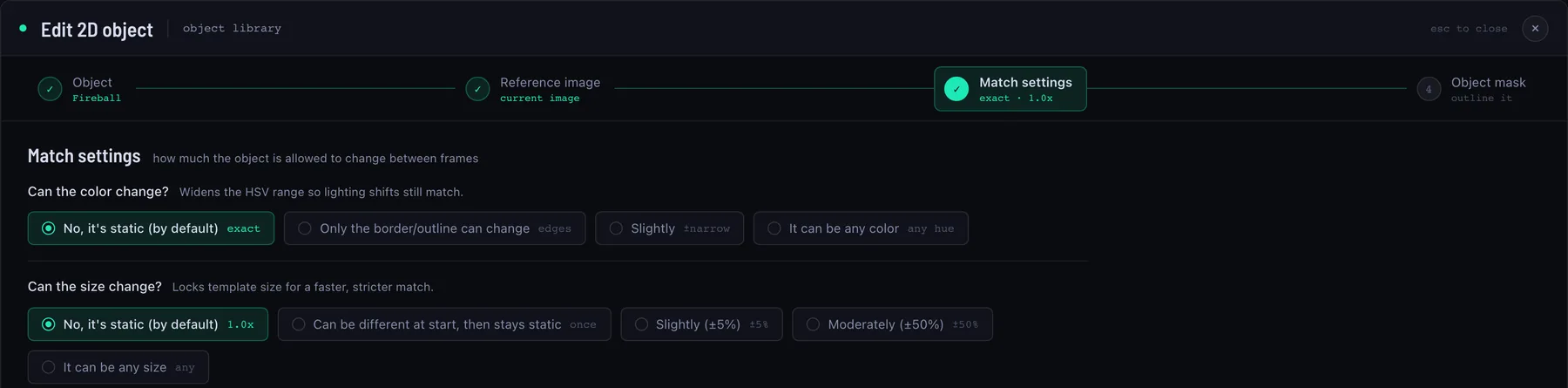
Answer the two questions
Can the colour change? Can the size change? The tighter the answers, the more precise the match and the less work each search costs. "No, it is static" is the strictest and the fastest; "it can be any size" makes every search much more expensive, so reach for it only when the thing really does scale.
-
Outline it, tightly
The mask is the shape actually being searched for, not the rectangle around it. Drag a box with GrabCut and it estimates the cutout inside it on its own; Rectangle, the magic wand, a brush and an eraser are there for the rest. Apply keeps the pending region. The thumbnail beside the pixel count is the live cutout — that, and nothing around it, is what gets matched.
Cut tight. Include the background around the icon and you have taught it to look for "the icon on that background"; the moment the scene behind it changes, the match drops. The same goes for anything see-through in the icon itself.

The mask step, start to finish. -
Put it in the macro, then the click after it

On the rail: + → Wait → Wait for object → Select object → the Global tab → your object → Next, Confirm, Done. Then add what should happen when it appears — a mouse click, a key, a line of text — as the next step. Give the macro a trigger key and it starts on that key, whatever window has focus.
Make it click where the icon is
A mouse action can move onto what the search just found instead of onto fixed coordinates. That is the difference between a macro that survives the window being moved and one that does not — and it is the same object you already made, so there is nothing else to set up.
When it does not find it
- Cut tighter. Background inside the mask is the usual cause.
- Tell it where to look. An Area narrows the search to one part of the screen — the skill bar, one panel — which is both more reliable and much cheaper than the whole screen.
- Loosen the survey, but only as far as the truth. If the icon really does change colour or size, say so; if it does not, do not.
- Watch what it captured. Turn on the Screen capture debug category and the log says what the search actually saw.
What it does not do
It reads the screen, and nothing else: no program's memory, no files, no network traffic. It plays nothing for you — it presses the keys you told it to press, when you told it to.
Plenty of programs and online games forbid automated input of any kind, and some ship anti-cheat that looks for it. Reading those rules is your job, and so is what follows from ignoring them. Where automation is not allowed, do not use it.
Get it
Windows 10 and 11, 64-bit. It installs into your own user folder, so there is no administrator prompt. Open beta: free while it runs, and it needs a free account.