02 Your first macro
The first macro answers a key. While it runs, it waits for you to press E and sends 1; the next E makes it send 2; then it starts over. It takes four steps.
The app opens on a sign-in screen first. Sign in opens your browser on the account page, and Create an account is under it; once the browser says you are signed in, the app shows the macro list. Nothing in it runs signed out.
-
New macro, and a name
New macro asks for a name and opens the editor. Name it something you will recognise on the list.
-
Pick Loop
The editor opens on one question: how the macro runs. This one should repeat for as long as it is on, so pick Loop. The choice stays in a square button beside the trigger, and How a macro runs covers the other three.
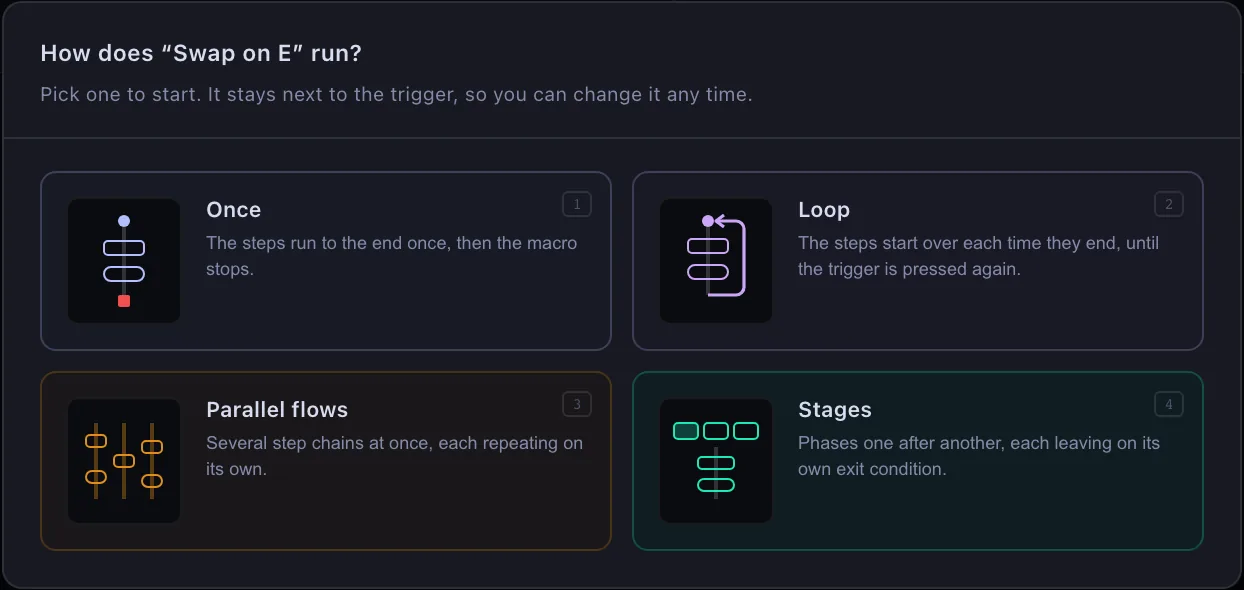
The first thing a new macro asks. The digits 1–4 pick a card from the keyboard. -
Add these four steps
Every + opens this modal, where you pick what the step does or waits for. The step's own dialog opens next; the arrow at the top left of it goes back to this list if you picked the wrong kind.
- Wait for key — until you press E
- Press — sends 1
- Wait for key — E again
- Press — sends 2
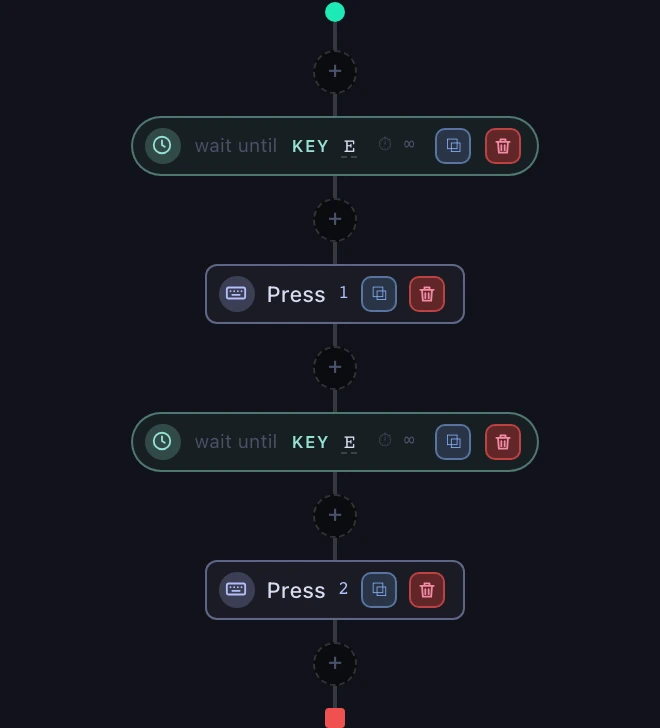
What the flow should look like once the four steps are in. Here is how it runs:
Steps run left to right. In Loop, after the last one the chain goes back to the first on its own.
-
Set a trigger key
Click Trigger in the editor's header and press F6: that key now starts the macro and, pressed again, stops it — more on trigger keys.
-
Save, then start
Save writes the steps. Press the trigger to start the macro, then E to see it answer; press the trigger again to stop it. The green play button on the list does the same.
Steps reach disk only when you press Save, and the editor stops you before you leave with unsaved changes. The trigger key is the exception: it is saved as soon as you pick it. A refused save names the exact step rather than making you hunt.