05 Flows and stages
How a macro is put together
Three things, one inside the next. Start from the one you already know.
-
A flow is a chain of steps
The rail you built in Your first macro: wait, press, wait, press. It runs on its own, and when it reaches the end it starts again from the top — unless the macro runs Once, in which case reaching the end is the macro stopping.
-
A stage is flows running at the same time
Add a second flow beside the first and both run at once, each on its own chain. Every macro has at least one stage; your first one had one stage with one flow in it.
-
A macro is stages in order
A stage runs until its exit condition passes, then the next one starts. One stage is enough for most macros. More are for a macro that changes what it is doing — one rotation with the bow, another with the sword, and back.

How a macro runs
Every macro has a run mode: Once, Loop, Parallel flows or Stages. A new macro asks for it before anything else, and the square button left of the trigger shows it and changes it. The mode decides what a flow does when it reaches its last step, and how much of the macro the editor shows.
Once
One flow, run to the end once; then the macro stops. Pressing the trigger runs it again from the top. There is no exit condition to set — reaching the end is the stop — and a Stop macro step ends it earlier. A recording turned into a new macro on the Tracker page is Once.
Loop
One flow that goes back to its first step each time it reaches the last, until you press the trigger again. Your first macro is a Loop.
The exit condition sits in the editor's header. Left empty, the loop runs until you stop it; set — a time, an object appearing — and the macro stops the moment it passes.
Parallel flows
One stage of several flows, all running at once, each on its own chain and each starting over on its own. You do not need a loop to “do two things at once”: one flow shoots, another watches a bar, a third types a command every minute. + Parallel flow adds one, and the flow tabs above the lane switch between them.
A wait in one flow does not hold the others, and each repeats on its own schedule. The flow tabs say how many are live. As in Loop, the exit condition is in the header.
Stages
Most macros need more than one mode. One rotation while the bow is out, another once you switch to the sword. That is what stages are for: each one holds its own flows — one or several, running in parallel — and each one carries the condition that moves on and the stage it moves on to. The flows of a stage keep starting over until it hands on.
The stage band across the top holds the chain, even with one stage, and + Add stage at its end appends one. Click a stage to edit its flows, double-click it for its name and exit condition, drag it to reorder, and the + between two stages inserts one there.
Leaving a stage
When a stage's exit condition passes, its flows stop and the next stage's start. The condition is picked from the same signals a wait uses — Timing, Object on screen, Color in area, Key pressed, Sound heard — plus one of its own, Stage done: a flow of this stage has finished, the number of times you set. It comes first in the list, and a stage with one flow has it picked already. Leave the row empty and the stage is the end of the line — the macro stays there until you stop it.
A flow can also leave from inside. A Next stage step does what the exit condition would, the moment the flow reaches it, and Stop macro ends the run — both on the Break, reset, stop page.

The box after the last stage says what happens then: Exit the macro, or Go to a stage — which is how a macro cycles, ranged → melee → ranged, for as long as it runs.
Changing the mode
The square button left of the trigger reopens the choice; 1–4 pick a card from the keyboard. Moving to a simpler mode keeps the selected stage, and for Once and Loop the selected flow. If that would delete anything, the app names each stage and flow it would delete and asks first. The new mode is saved with the next Save, like any other edit. A macro made before run modes existed, or imported without one, opens as Stages.
Watching a run
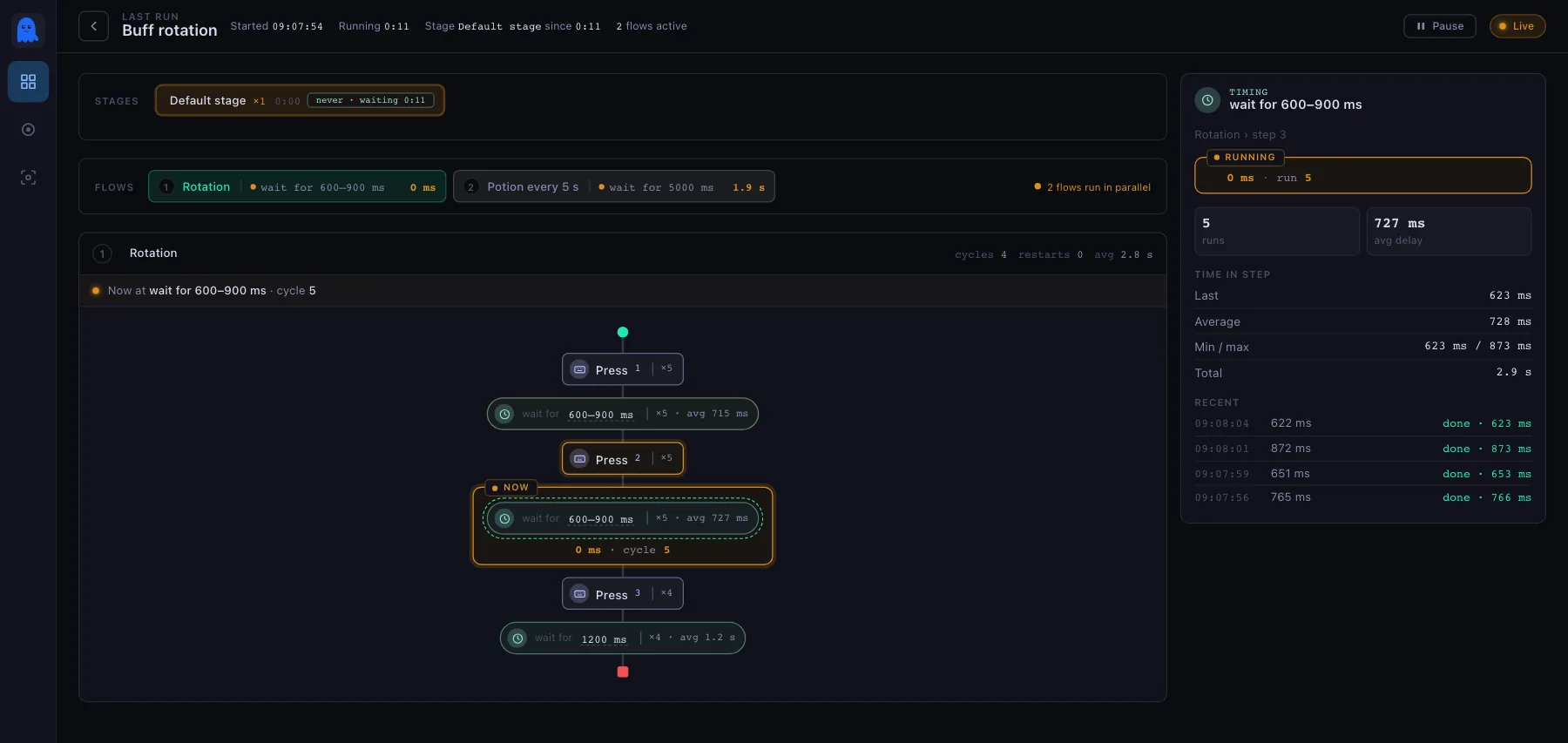
On the macro list, the row's ⋯ menu → Statistics lays the last run over the macro's own rail: how many times each stage was entered and for how long, where every flow is right now, and for each step how often it ran, how it ended and how long it took. The amber frame is the step in flight; click any step for its own panel. Pause holds the figures still while you read them. The run is kept in memory, so it lasts until the app is restarted.