3.3 Macro record
The Tracker records what you do — keys, mouse, and if you want the screen just before every press — and turns it into steps you can edit and save as a macro. It is the fastest way to get a long sequence in, and the easiest way to get a screenshot of exactly the moment you care about.
Before you record
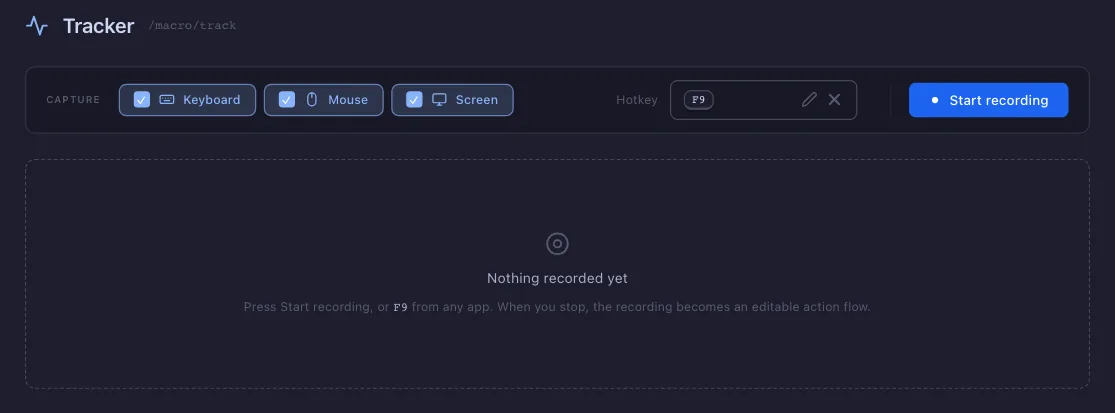
- Keyboard — records key presses.
- Mouse — records clicks, and where on the screen they landed.
- Screen — keeps three frames for every press: two seconds before, one second before, and the moment itself.
- Hotkey — starts and stops a recording while another program has focus, which is the only way to record something full-screen.
- Start recording — starts the recording; while it runs the same button is Stop recording. The chips are read once when it starts, so they lock until it stops.
After a recording
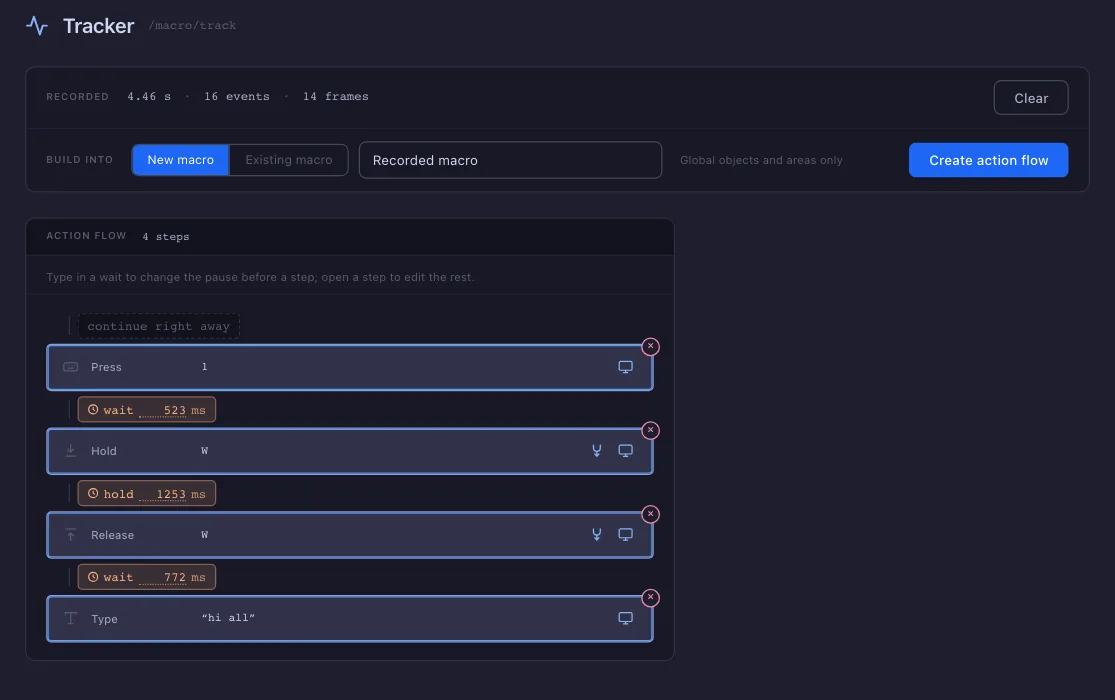
- Counts — how long the recording ran, and how many events and frames it holds.
- Clear — drops the recording, edits and all. There is no undo; the next recording starts from scratch.
- Build into — where the steps go: a New macro, which runs them Once, or a new flow in an Existing macro.
- Name — of the new macro, or the macro and stage to add the flow to.
- Create action flow — writes it.
- Step — click to edit it. A mouse click shows as one row —
Click left · at 41% · 37%— and becomes a move and a click when the flow is created. - Wait — the pause before the next step. Type in it to change it.
- Merge — on a row that can fold into its neighbour, such as a hold with its release or a modifier held around a press. It lights the partner and makes one step of the two; Split takes it back apart.
- Screens — the three frames recorded with that press. When you later open the step to make an object, these are offered first.
- Delete — removes the step.