3.2 Macro edit
Where a macro is built. What the editor shows depends on the run mode; this is a Stages macro with two stages and two flows, which shows all of it.
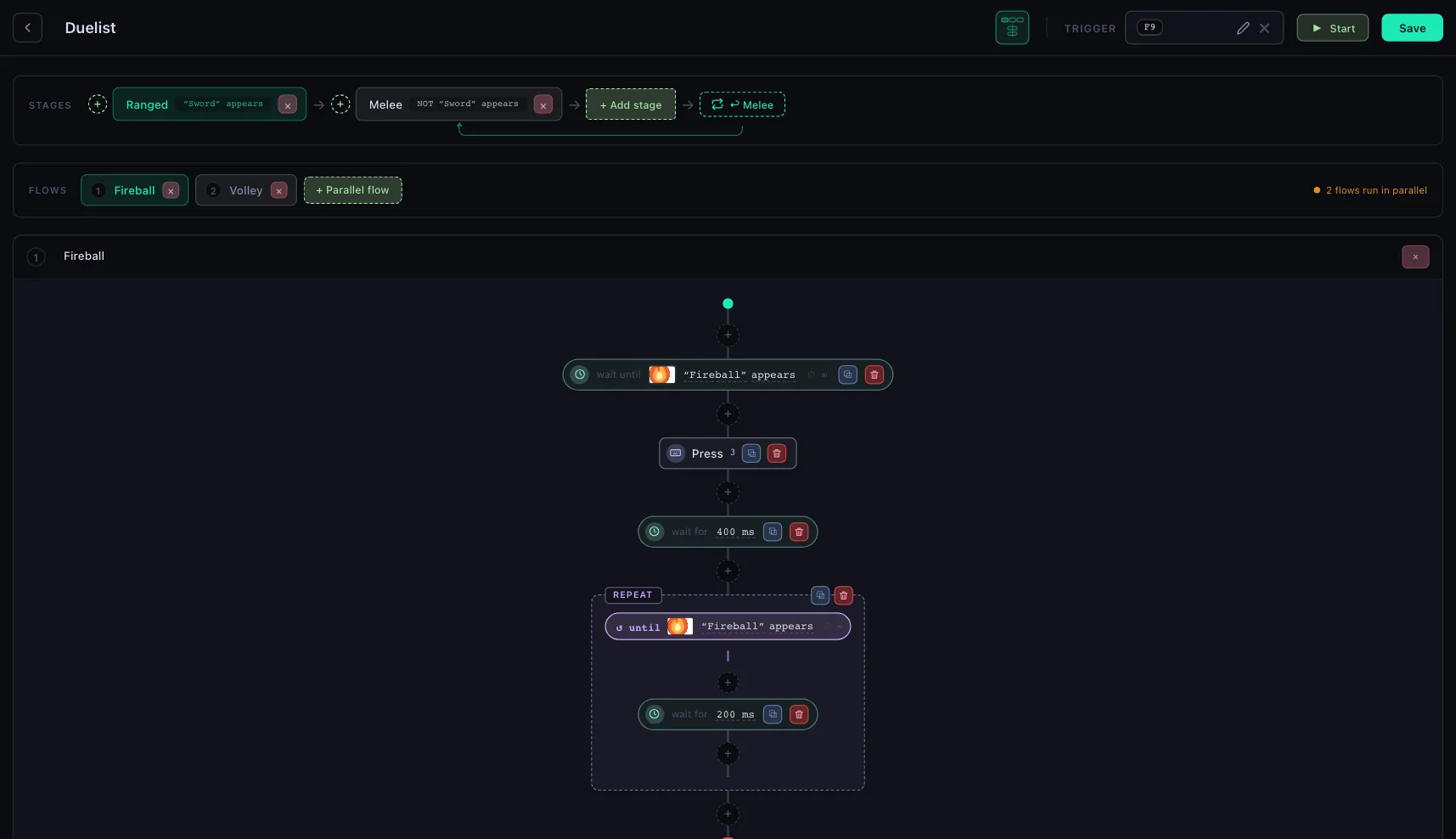
- Back — to the macro list. With unsaved changes it asks first: Save & leave, or Leave without saving.
- Name — click to rename.
- Run mode — Once, Loop, Parallel flows or Stages; the icon shows which. Click it to change the mode. In Loop and Parallel flows an Exit condition button sits to the left of it. See How a macro runs.
- Trigger — the macro's hotkey, the same box as on the macro list: press it to start the macro, again to stop it. Saved the moment you pick it.
- Start — runs the macro from here. The engine runs the last saved version, so with unsaved changes it asks: Save & start, or Discard & start. While the macro runs, the button is Stop and Save waits for it.
- Save — writes the macro. An asterisk means there is something to save, and Discard changes appears beside it then, which reloads the macro as last saved. Everything on this screen waits for Save except the trigger.
- Stage — click to show its flows; double-click it, or click its chip, for its name and exit condition. Drag to reorder, × to delete; the + between two stages inserts one there.
- + Add stage — appends a stage.
- Then — what runs after the selected stage: Exit the macro, or Go to a stage.
- Flow tab — one per flow of the selected stage; click to show its rail, × to delete. See Parallel flows.
- + Parallel flow — adds a flow to the stage.
- Flow name — click to rename. The × at the far right of this bar deletes the flow.
- Insert a step — the + between two steps inserts one there. It opens the palette, where you pick what the step does or waits for; see Flow.
- Step — click to open its dialog, drag to move it. In the dialog, the arrow at the top left goes back to the palette to pick another kind.