3.1 Macro list
The first screen after sign-in: every macro you have, its trigger key, and the buttons that run it.
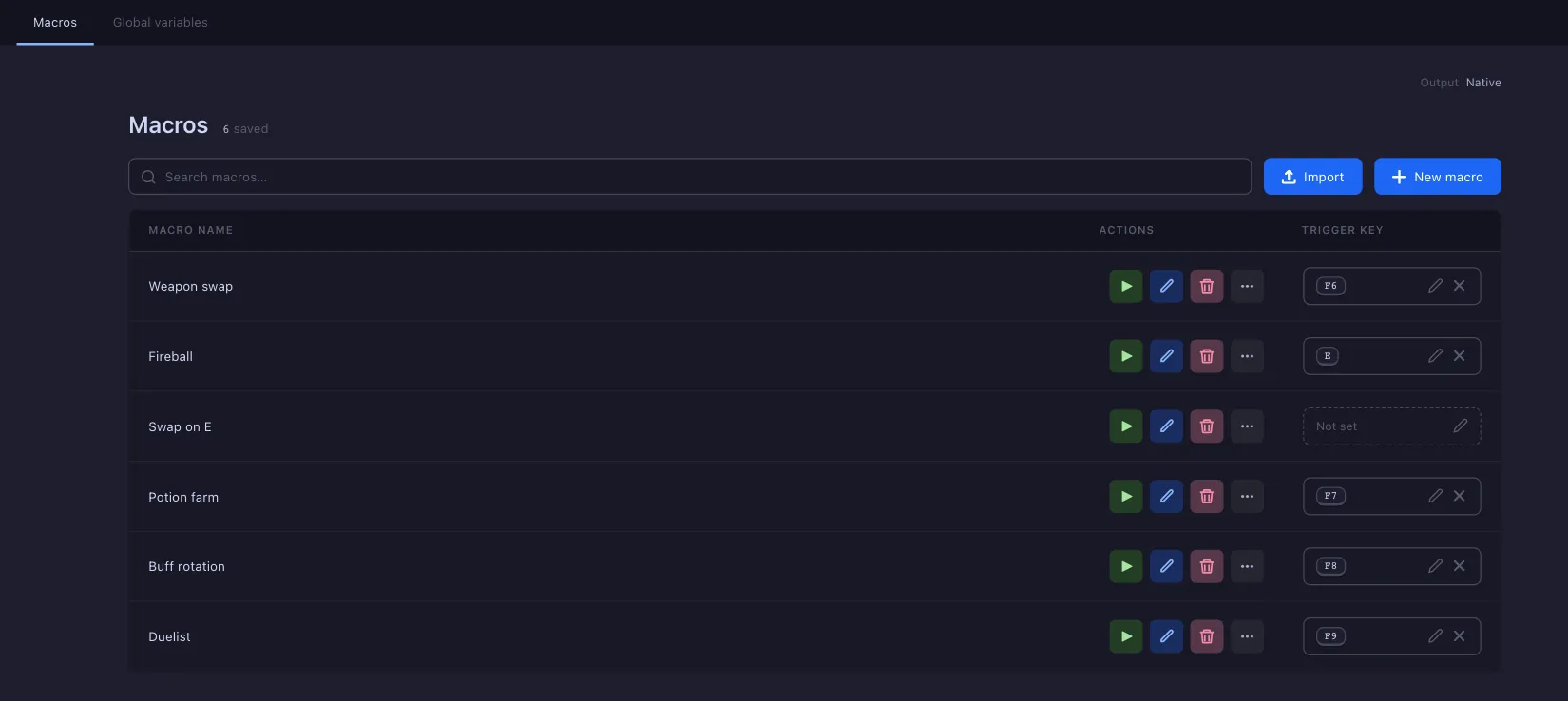
- Global variables — the counters every macro shares: edit a value, reset it to zero, or delete it. See Counters and text.
- Output — which device sends the keys and clicks, Native or Arduino. It is changed under Settings → General.
- Search — filters the list by name.
- Import — loads a macro from a
.pcm.zipfile. Export a macro (under More), send the file to a friend, and they load it here. Before anything is created, the app shows what the file holds — the macro and the objects, areas and colours it uses — and lets you rename it, or point each piece at one you already have instead of making a duplicate. - New macro — asks for a name, then for how the macro runs, and opens it in the editor.
- Name — right-click the row for Rename. A running macro shows a Running badge here.
- Start — runs the macro, the same as pressing its trigger key. While it runs, the button is Stop.
- Edit — opens the macro in the editor.
- Delete — asks first.
- More — Statistics, the last run laid over the macro's own steps (see Watching a run), and Export, which saves the macro with everything it uses to one file for Import. Export is hidden while the macro runs.
- Trigger key — the hotkey that starts the macro and, pressed again, stops it. It works while another program has focus, which makes it the usual way to run a macro over a game. Click the box and press the key; it is saved at once, without Save, and × clears it. The picker says so when another macro already uses the key. With sequences turned on under Settings → Trigger keys, a trigger can also be a few presses in a row.