06 Settings
Three tabs. General is what the app does on the machine, Screen is what it reads, Debug is how you see what it saw.
General
Output
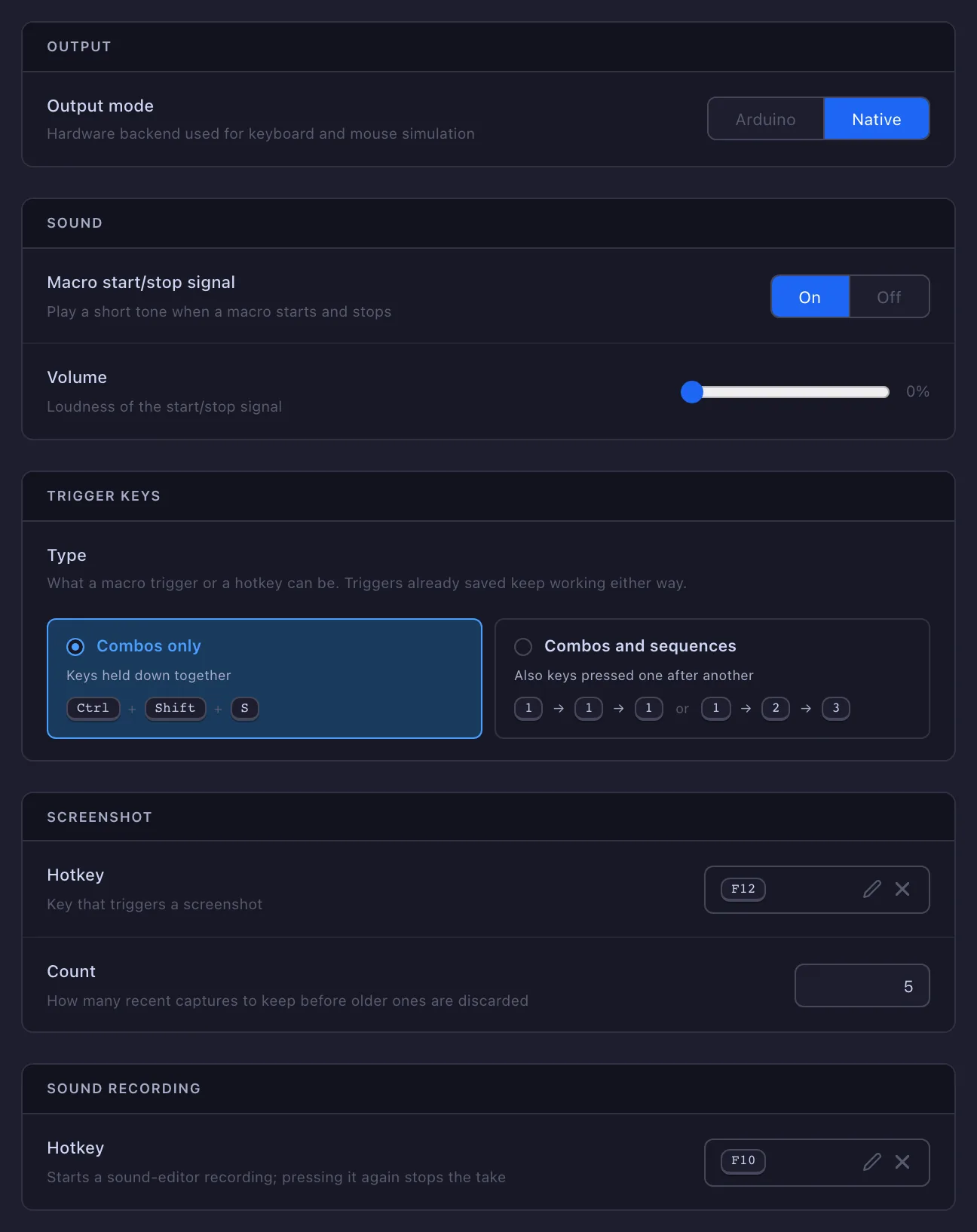
Keys and clicks leave the app through one of two devices, and Output mode is the switch.
Native is the default. Presses and clicks are sent as ordinary Windows input, the same way any accessibility tool or remote-desktop client sends them. Nothing to set up, and the right answer for almost everything.
Arduino is for programs that take input from a physical keyboard and mouse and nothing else. A board plugged in over USB does the pressing: to the computer it is a keyboard and a mouse, and the app tells it what to press over a serial line. The firmware that ships with the app is built for the Arduino Nano R4.
-
Pick the board
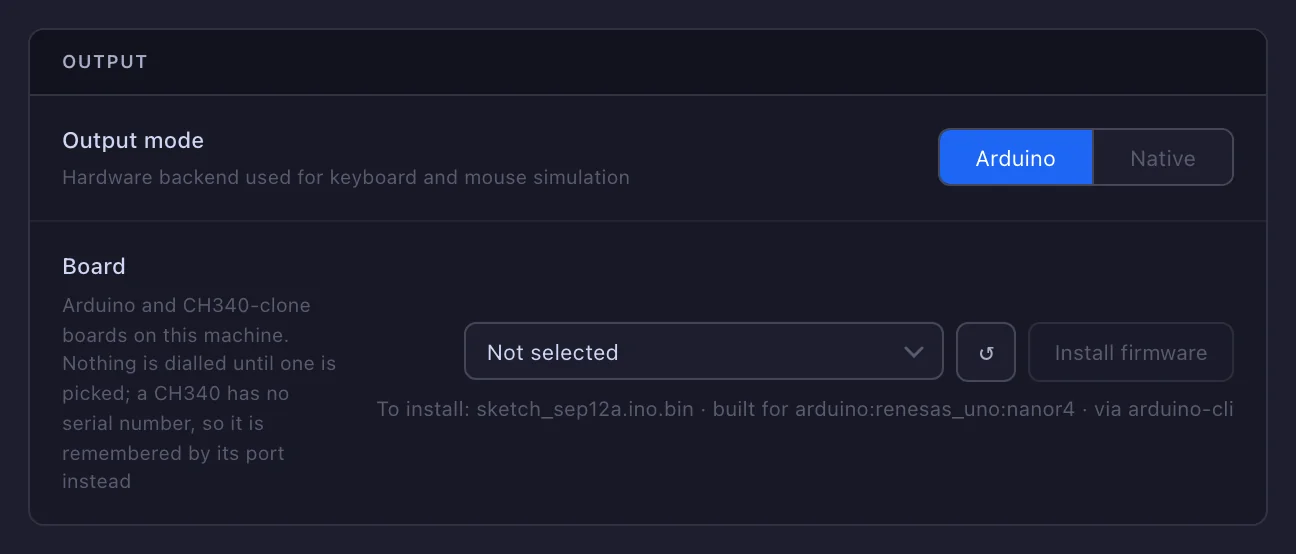
Switch Output mode to Arduino and a Board row appears, listing the Arduino and CH340-clone boards on this machine; ↺ re-reads the list after you plug one in. Nothing is dialled until one is picked. The line under it says whether the board is connected and what it answered — no Polter Click firmware answered on a fresh board, or the firmware version it runs.
-
Install firmware
Writes the app’s sketch to the picked board and replaces whatever is on it. The write goes through arduino-cli, which is yours rather than shipped: the app finds it on
PATH, in the official installer’s folder, or inside Arduino IDE 2, and if there is none it says where to get either. When the cli has no package for the board yet, the app offers to install it — a minute or two, and on Windows the board’s driver with it, behind one administrator prompt. Do not unplug the board until the write finishes.The same button is how an update lands: when the board answers with an older version than the app expects, the status line says so and Install firmware is highlighted.
Once picked, the app talks to the board at 9600 baud and reconnects on its own every two seconds if the cable is pulled. The mouse moves in nudges — the board can only say “this far from here” — so the app measures how far each nudge actually moved the cursor and steers toward the target with the next one; there is nothing to calibrate by hand.
Because the board is a real keyboard, every key it presses would come straight back into the app as input — and re-trigger the macro that sent it. So the picked board’s vendor id is blocked from the trigger listener, only that one, and only while Arduino is the output. Your keyboard is still heard; the board’s is not.
Sound
Macro start/stop signal plays a short tone when a macro starts and when it stops, so you hear the trigger land without looking away. Volume is its loudness.
Trigger keys
Type says what a trigger can be. Combos only, the default, is keys held down together, such as Ctrl+Shift+S. Combos and sequences also allows keys pressed one after another — 1 → 1 → 1, or 1 → 2 → 3 — up to four steps, each step a combo of its own.
It applies to every trigger: a macro’s trigger key, the hotkeys on this page, and a wait for a key. With sequences on, the key picker records each press as a step, and Max pause between presses appears — 800 ms by default; a longer gap starts the sequence over. Turning it off changes only the picker: a sequence already saved keeps firing.
Screenshot
Hotkey — F12 until you change it — captures the screen without leaving whatever you are in, for the object, area and colour editors. Count is how many recent captures are kept before older ones are discarded; five by default.
Sound recording
Hotkey — none until you set one — starts a take in the sound editor from inside the game; pressing it again stops the take.
Hotkeys
Every hotkey is global — it reaches the app while a game has focus. A combination is matched in the order you pressed it, and only when your held keys end with it: holding a macro’s A+B trigger and then pressing C does not fire it again. Holding a trigger down toggles once, not repeatedly. A key is the physical key: the trigger does not change with the keyboard layout or with Num Lock, and Numpad Enter is not Enter. A sequence fires once per completion: pressing 1 six times against a 1 → 1 → 1 trigger fires it twice. Besides the two on this tab:
- Macro trigger — per macro, in the editor’s header or the macro’s row on the list (set one). Press it to start the macro; press it again to stop it.
- Overlay — under Debug. Shows and hides the debug layer on screen.
- Tracker — on the Tracker page. Starts and stops a recording while another app has focus, which is the only way to record something full-screen.
Screen
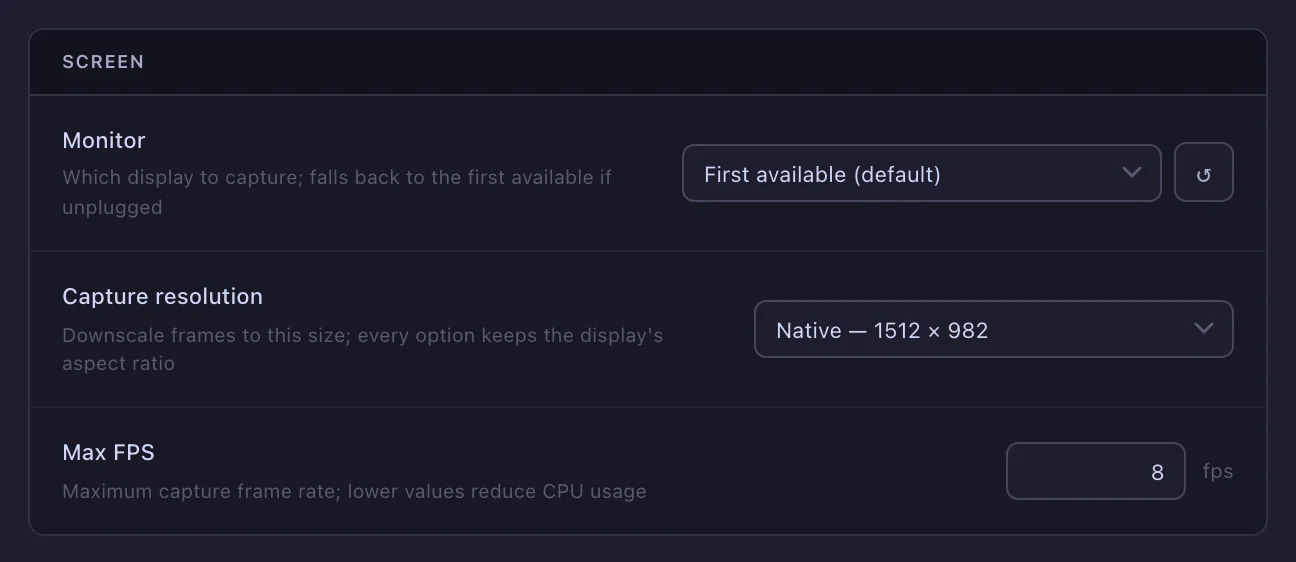
- Monitor — which display gets captured. On a multi-screen setup, point it at the one the game is on; if that display is unplugged it falls back to the first available.
- Capture resolution — every option is a fraction of that monitor’s own resolution, so the aspect ratio always matches. Downscaling makes every search cheaper; go too far and small icons stop being recognisable.
- Max FPS — how often the screen may be re-read; 8 by default. Lower is lighter. A frame is only captured when something is asking for one, so a macro with no screen conditions costs nothing here.
Debug
Debug overlay
The overlay is a window the app draws over the screen. Its debug layer, toggled by the Hotkey here, shows the box around every object it is searching for, the cost of that search under the box, and a panel of what each flow is doing. A Screen text action draws on the same window, whether the debug layer is on or not. Both need the game in windowed mode; an exclusive full-screen window covers them.
Debug logs
The app writes what it does to core.log, next to the database in
%APPDATA%\Polter Click, and the file holds the current run only — every start
truncates it. Export the log downloads it as it stands;
that is what to attach when something did not do what you expected.
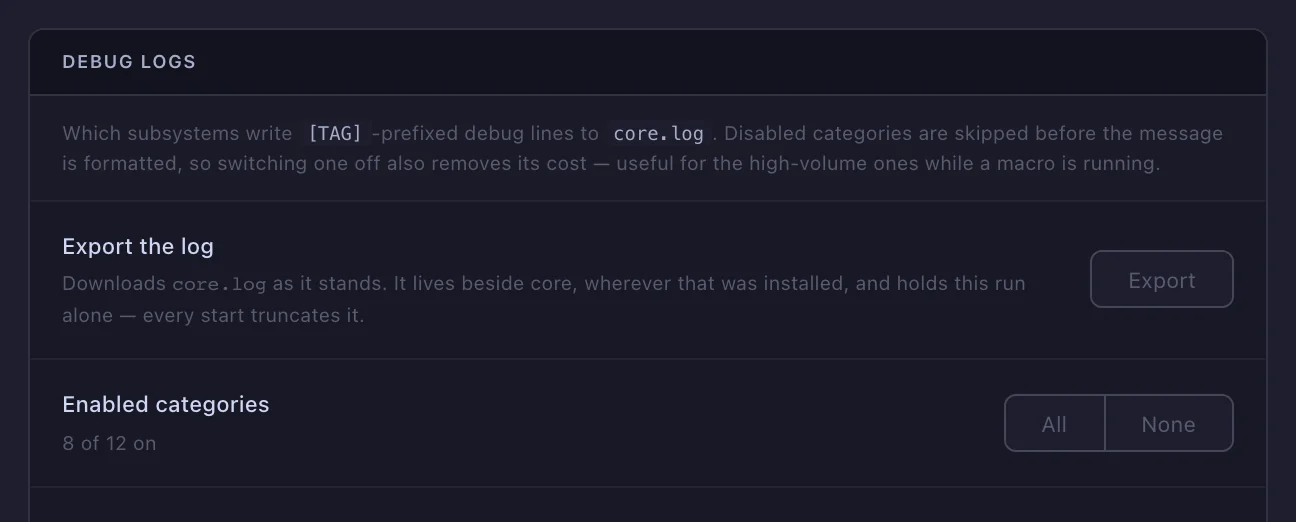
Enabled categories is which subsystems write to the log. A category that is off is skipped before its line is even formatted, so switching one off also removes its cost — worth doing for Conditions, the highest-volume one, while a macro is running fine.
- Macro engine — start and stop, stage transitions, flow cycles.
- Conditions — every condition evaluation and its timing.
- Actions — the waits around each action and release gating.
- Key input — incoming key combinations and device registration.
- Key output — the presses, releases and mouse movement it sends.
- Screen capture — frame conversion and resize failures.
- Statistics — the live state and timeline events sent to the app window.
- Database — query and lock-wait timings.
- Audio — problems playing the start/stop signal.
- Arduino — serial connection attempts.
- Account — the sign-in: the stored session checked at start, sign-ins, sign-outs, token refreshes.
- Startup — boot-time configuration; written before these settings load, so always on.
Images
The screenshots the editors work from. Export images picks one or more from the library and bundles them; Import images takes such a bundle, or a single image file, so a reference frame can move between machines with the objects built on it. The bin on a row — here, and in every image picker — deletes a capture or an upload from the library; a frame an object, an area or a colour was painted on stays until they are gone.