4.3 Targets
A wait watches for one of these. Each is built once, kept in a library, and reused by every macro that needs it — global — or made private to one macro, hidden from every other list and cleaned up with its owner.
Objects
What if I want to react when an icon appears — a debuff, a loot marker, a quest turn-in?
Teach it the icon once. From then on a wait can watch for it, a click can land on it, and the mouse can move onto it. Four steps.
-
Take a screenshot with the icon on it
The screenshot hotkey — F12 until you change it, under Settings → General — captures the screen without leaving the game, and keeps the last five. Or upload an image.
-
New object
An object is either global — in the library, for every macro to use — or belongs to one macro, hidden from every other list and cleaned up with its owner.
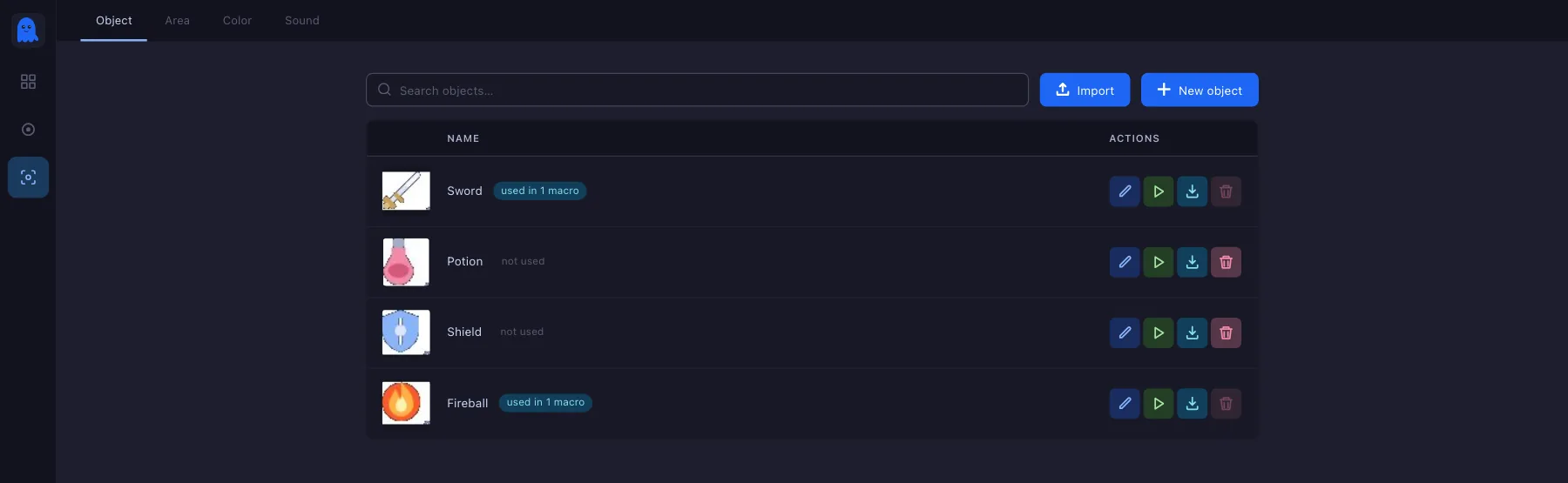
For a global one, go to Objects → Object → New. For one that belongs to the macro, open the object picker inside the node — the wait's, or the move's — and use its Private tab; the Global tab beside it reaches the library from the same place, and is the tab the picker opens on while the macro owns nothing of its own. Either way, name it and choose the screenshot.
-
Answer the survey
Can the colour change? and Can the size change? The tighter the answers, the more precise the match and the less work each search costs. “No, it's static” is the strictest and the fastest; “it can be any size” makes the search work much harder, so reach for it only when the thing really does scale.
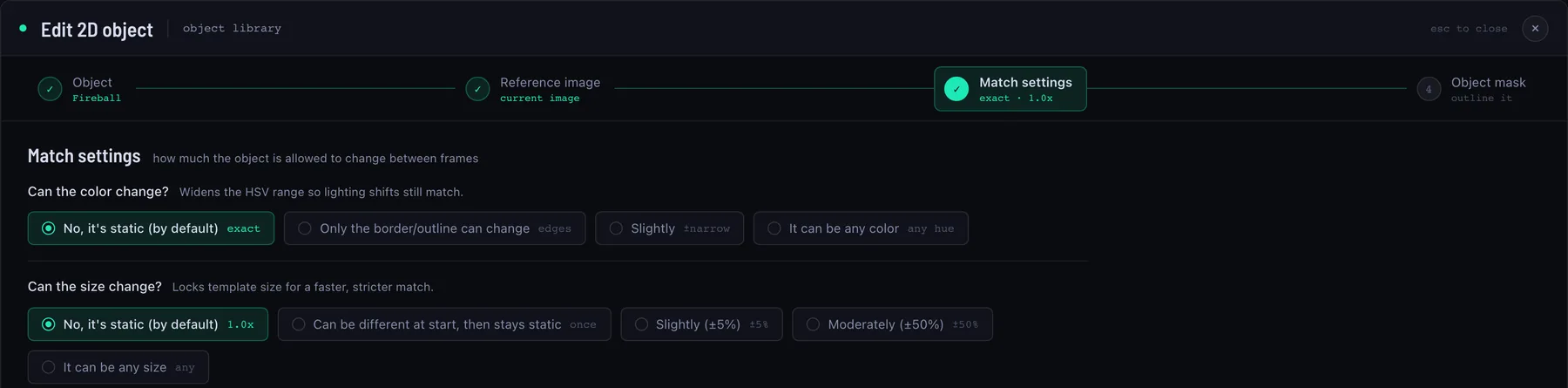
Two questions, one detector. The shortcut on the right of each row ( exact,±5%,any hue) is what the answer does in practice. -
Outline the icon
The mask is the shape actually being searched for, not the rectangle around it. Five tools: Rectangle takes everything inside a box; GrabCut estimates the cutout inside the box you drag, on its own, the moment the box is down; the magic wand grabs a contiguous patch of colour; the brush and the eraser fix the edges by hand. Each of the first three puts a pending region on the picture with two chips under it — Apply keeps it, Reset drops it. The thumbnail beside the pixel count is the live cutout — that, and nothing around it, is what gets matched.

The mask step, start to finish. The screenshot; a GrabCut box around the icon, with the estimate already inside it; Apply; and where the cutout it will search for shows up — bottom right, beside the pixel count.
Select only what will not change. Include the background around an object and you have taught it to look for “the object on that background” — the moment the scene behind it changes, the match drops. The same goes for anything see-through in the icon itself: a transparent part shows whatever is behind it, and that is not the icon.

Then use it. In the macro: Wait for object, pick the icon, pick where to look, and put the action after it — the click, the potion, the key. Saved objects live under Objects → Object. The same five steps, on one page and with the screens beside them: an auto clicker that waits for an image.
Area
What if I want it to look at the skill bar only — not at the whole screen?
An area is a saved answer to “where”. Every search — a wait, a click, a colour bar — asks for one, and Full screen is the default. It is also the slowest answer and the least safe one: the whole frame takes longer to scan, and a chat line or a quest icon that happens to resemble the object matches too. An area cuts the frame down before the search starts. Three steps.
-
Choose the screenshot
An area is either global — in the library, for every macro to use — or belongs to one macro, hidden from every other list and cleaned up with its owner. For a global one, go to Objects → Area → New area. For one that belongs to the macro, open the area picker inside the node and use its Private tab; the Global tab beside it reaches the library from the same place.
Either way, name it and pick the screenshot the object was taught from. Every step below runs on that frame and shows its result, so the area is checked before a macro ever uses it.
-
Cut a zone
The + after the source card adds a step. Take Zone and drag a box over the bottom third. The bar never leaves it, and the two thirds above are scenery: nothing there can match, so nothing there should be searched. The box is stored as fractions of the frame, not pixels, so it lands on the same part of the screen at another resolution.
-
Find the first slot and grow the box
Add an Object step after the zone and pick the first slot’s icon. A zone alone would do for a bar that never moves — but a bar moves: a different resolution, a UI scale setting, a toolbar you dragged. Anchoring on slot 1 finds the bar wherever it is, and the zone only says roughly where to look for that anchor.
The match is one slot and the area needs the whole bar, so under Grow the search box set Right to 600 % — six more slot widths. The dashed box is the area. A negative value pulls an edge in instead: −100 % puts it on the far side of the match, which leaves the anchor itself out of the area.

Each card in the chain shows what that step produced and how long it took, so a slow chain is visible before the macro runs. Check is a dry run: it looks for an object inside the area and reports whether it was found, how long it took, and how close the match was. A check saves the area first, because it runs against the stored row rather than the draft.
Then use it. Wherever a wait or a click asks where to look, the area is in that list beside Full screen. Saved areas live under Objects → Area.
Wherever a condition asks for a search, it asks for both halves at once: the object to find and the area to find it in. Full screen is a real answer in that list — it means “don't narrow it”, not “unset”.
Colour bar
What if I want to react to how much health I have — drink at 25%, stop attacking at 10%?
A bar is a colour. Health, mana, cast bars, cooldowns, progress bars — anything that fills or drains. Teach it the colour and where the bar sits, and a wait can read the bar as a percentage. Five steps.
-
Take a screenshot with the bar on it
Ideally with the bar full — you will calibrate against it in a moment.
-
New colour, and draw the zone
A colour bar is either global — in the library, for every macro to use — or belongs to one macro, hidden from every other list and cleaned up with its owner. For a global one, go to Objects → Colour → New. For one that belongs to the macro, open the colour picker inside the node and use its Private tab; the Global tab beside it reaches the library from the same place.
Drag a rectangle around the bar — the whole bar, from empty end to full end. This is the zone the reading is taken in, and the colour carries it, because a colour with nowhere to measure it means nothing.
-
Sample the colour
Click the bar's fill with the eyedropper. The preview highlights every pixel in the zone that matches; tighten the tolerance until only the fill lights up and the border does not. Common is one slider; Pro splits it into hue, saturation and value, for a bar whose brightness shifts but whose hue does not.
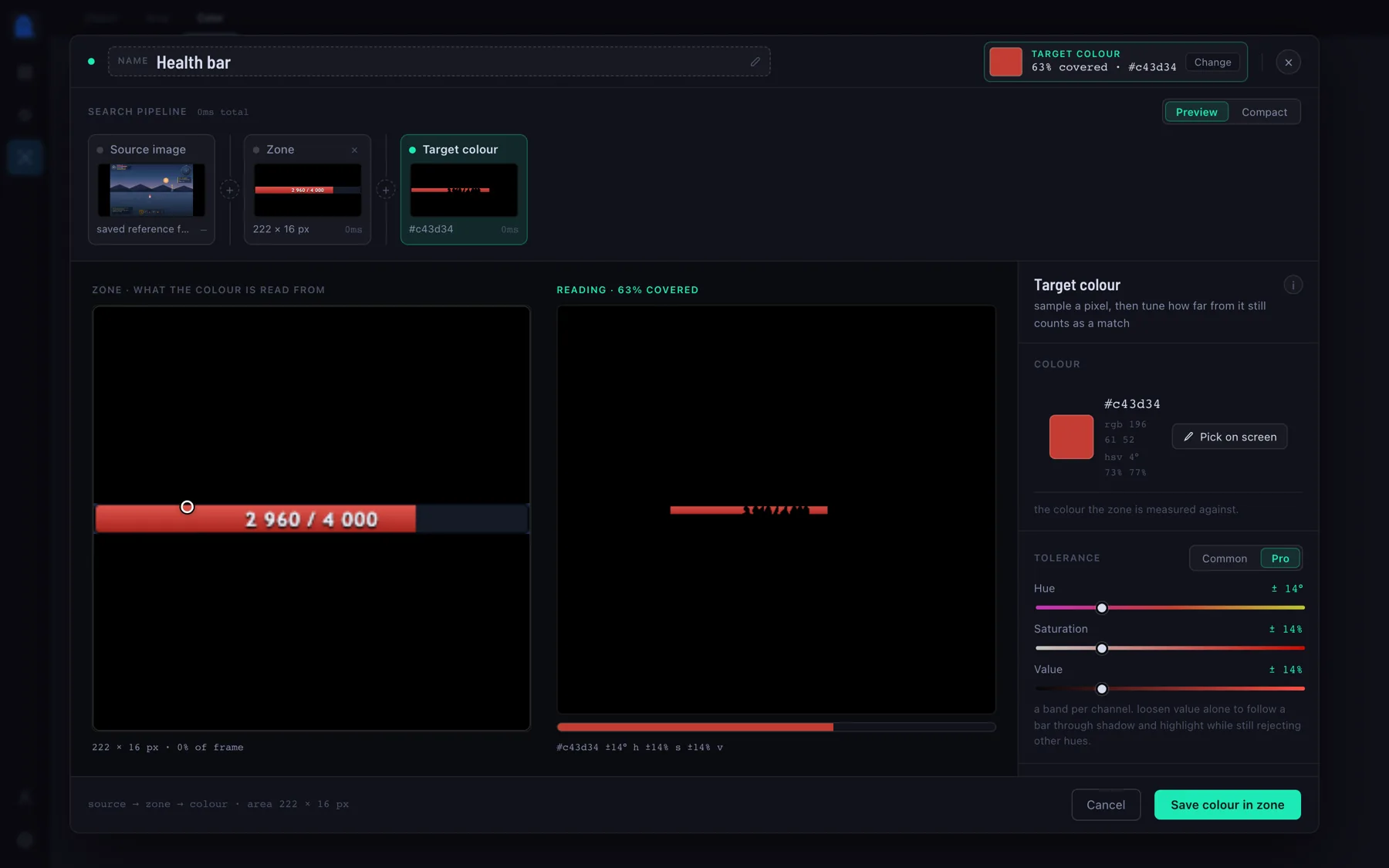
Sampled, not typed. The eyedropper takes the colour off the frame; the preview highlights exactly which pixels matched, which is how you tell a good tolerance from one that is picking up the border too. -
Say which way it fills
Direction: left to right, or bottom to top. Direction lives on the reading, not on the colour, so one colour serves a horizontal bar and a vertical one alike.
-
Calibrate
Bars rarely fill their own box edge to edge — borders and rounded ends leave a few per cent. With the bar full on screen, press Calibrate once, and from then on 100% means full. Until you do, the whole zone counts as 100%.
How it reads
It keeps only the pixels in the zone that match the colour, then looks along the bar's direction one row at a time and counts the matching pixels in each. The fullest row wins, and its length against the zone's length is the percentage.
That is why what sits on top of the bar rarely matters. The number printed over it, a segment marker, a shine — each spoils only the rows it crosses, and the reading comes from a row it does not.
Then use it: Wait for colour, pick the bar, and set the level — less than 25%, more than 90% — with the action after it.
Sound
What if I want to react to a sound — the chime when a fish bites, the level-up fanfare, an alert that fires while the window is behind another one?
Record it once, and a wait can listen for it. It is matched against what the system plays — never the microphone, and nothing else on the machine is listened to. Four steps.
-
Open the sound editor
A sound is either global — in the library, for every macro to use — or belongs to one macro, hidden from every other list and cleaned up with its owner. For a global one, go to Objects → Sound → New sound. For one that belongs to the macro, open the sound picker inside the wait and use its Private tab; the Global tab beside it reaches the library from the same place.
Or set a sound-record hotkey under Settings → General and press it in the game: the editor opens with a take already rolling, so you do not alt-tab out first.
-
Record, make the sound happen, stop
The recording is a rolling ten-second window that overwrites itself, so there is no auto-stop and no hurry to hit the button at the right instant. Press Record, cast the line, wait for the chime, press Stop.
-
Trim to the sound
The take shows the waveform with a spectrogram under it, and the two handles are the window. Drag them down to the part that matters. The shorter and more distinct the take, the fewer things it can be confused with.
-
Raise the threshold if there is noise
A fresh take starts with the threshold off, so everything in it counts as the sound. If the take has room tone or game ambience under it, raise the threshold until only the sound itself stays lit — what falls under the line greys out and is ignored — then save.

Then use it: Wait for sound, pick the recording, and set Strictness — the same idea as an object's accuracy. Raise it when the game has another sound that starts the same way.